
The REST API connector allows you to connect your Memento Database libraries to virtually any external web service or platform. By defining how to query the API and map its responses, you can seamlessly integrate third-party data directly into your records.
1. Initial Connector Setup
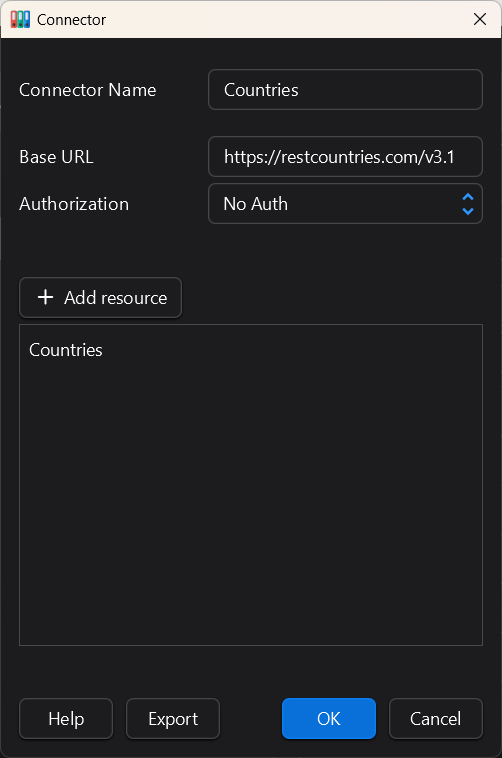
When you create a new REST API connector, you first need to establish the connection fundamentals:
- Connector Name: A recognizable name for your integration (e.g., “Countries API”).
- Base URL: The root web address for the API (e.g., https://restcountries.com/v3.1). All subsequent resource requests will be appended to this URL.
- Authorization: Select the authentication method required by the API.
- No Auth: For public APIs.
- API Key: If required, specify whether the key should be sent in the Header or as a Query Parameter, and provide the parameter name. For the key itself, you can enter it directly or (highly recommended for security) use an environment variable in the format
${env:YOUR_VARIABLE_NAME}
2. Defining Resources
A Resource represents a specific type of object you want to retrieve from the API (for example, a “Country”, a “User”, or a “Product”). After setting up the base connector, click Add resource to configure how Memento interacts with these objects.
The resource configuration window is divided into different request types (Search, List, Lookup) and mapping rules.
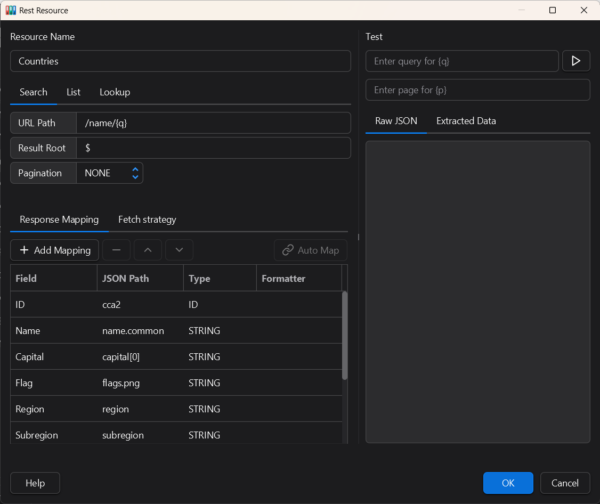
Endpoint Configurations (Search, List, Lookup)
You can define up to three different HTTP requests for each resource. In your request paths, you can use specific placeholders that Memento will dynamically replace:
- {q} — Represents the search query typed by the user (e.g., /search?q={q}&limit=20).
- {id} — Represents the unique identifier of a specific object.
Tip: You can test your queries in the “Test” panel on the right side of the window to ensure the API returns the expected data before saving.
- Search (Required for searching): The query used when a user types into the External field. It utilizes the {q} placeholder.
- List (Optional): The query used to fetch a general list of available objects. If configured, users can browse and pick from a list without typing. If left blank, objects can only be found via the Search function.
- Lookup (Optional but Recommended): The query used to fetch a single object by its ID (using the {id} placeholder).Why is this important? A Lookup query is required for data synchronization. If you don’t configure it, Memento cannot update the object if it changes in the external source. Additionally, if your Search/List endpoints only return partial data, Memento can use the Lookup query to fetch the full details when an object is selected.
Handling Pagination
API results for Search or List queries are often returned in pages to manage large datasets. You can configure how Memento navigates through these pages using the Pagination drop-down menu. Memento supports three types of pagination, all of which use the {p} placeholder in your URL path to inject the current page value:
- Cursor: Used when the API returns a specific token or cursor for the next page. You must specify the Next page path (the JSON path used to find the token in the API response). In your URL, use {p} where the token should be placed (e.g., /search?q={q}&pageToken={p}).
- Page: Traditional page-number-based pagination. You must specify the Total pages path (the JSON path pointing to the total number of pages). In your URL, use {p} for the page number parameter (e.g., /search?q={q}&page={p}).
- Offset: Used when the API skips a certain number of records. You must specify the Total records path (the JSON path pointing to the total count of available objects). In your URL, use {p} where the offset value should be inserted (e.g., /search?q={q}&offset={p}).
3. Response Mapping
Once you have configured your endpoints, you must tell Memento how to extract data from the API’s JSON response.
Result Root: First, define the JSON Path that points to the array of results in the API response.
- If the API returns an array at the very top level, use $
- If the results are nested inside an object, use a path like $.data, $.items, or $.results.
After executing a successful test query in the right-hand panel, you can click the Auto Map button (link icon). The program will automatically attempt to extract the fields and populate the mapping table for you. The Result Root must be configured correctly for this feature to work properly.
Field Mapping Table: Next, map specific data points to Memento columns. Note that mapping settings are shared across all three query types (Search, List, Lookup).
- Field: The name of the column as it will appear in Memento (e.g., “Name”, “Capital”).
- JSON Path: The path to extract the specific value from the object. Examples: name.common (for nested text) or capital[0] (to get the first item in an array).
- Type: The data type (e.g., STRING, INTEGER). Crucially, exactly one field MUST be set to the ID type. This tells Memento which value uniquely identifies the external object.
- Formatter: Here you can write expressions to transform the extracted value before saving it to Memento. (Learn more about Transformation Expressions).
4. Fetch Strategy
The Fetch strategy tab allows you to fine-tune how Memento handles network requests and caching for this specific resource, optimizing performance and preventing API rate limits.
- Cache TTL (minutes): Determines how long (in minutes) the retrieved API data is stored locally before Memento requests fresh data.
- Cache raw API response: A toggle to save the raw JSON response in the cache.
- Max req/sec: Limits the maximum number of requests Memento will send to the API per second, protecting you from being blocked by rate limits.
- Enable batch lookup & Max IDs: If the API supports fetching multiple items by ID in a single request, enabling this allows Memento to group requests together (up to the defined “Max IDs” limit).
- Load details on select: If your Search or List queries return lightweight objects (to save bandwidth), toggle this on. When a user selects an object, Memento will automatically execute the Lookup query to fetch the complete set of data for that specific item.
- Min characters to search: Delays the search request until the user has typed a minimum number of characters (e.g., 2), preventing unnecessary API calls for single letters.
- Search as you type: When enabled, Memento will automatically send search requests to the API dynamically as the user types, creating a fluid, live-search experience.
5. Transformation Expressions (Formatter)
The Formatter column in the Response Mapping table allows you to modify and format the data extracted from the API before it is saved into Memento Database. It supports text templating and a powerful pipeline of chained transformers.
String Templates
You can inject the extracted API value directly into a custom string using placeholders. This is highly useful for generating URLs or appending static text.
- {value} — Inserts the entire extracted value. (Example: https://example.com/item/{value})
- {value.fieldName} — Extracts a specific property from a JSON object.
- {value[n]} — Extracts an element from a JSON array by its index.
Transformer Pipeline
You can apply a chain of transformations to your data using the pipe ” | ” symbol. The data flows from left to right through each transformer.
Syntax: {value | transformer1 | transformer2(“argument”)}
Example: {value | trim | upper} will remove leading/trailing spaces and then convert the text to uppercase.
Available Transformers Reference
| Category | Transformer | Description & Example |
|---|---|---|
| String | upper / lower | Converts text to UPPERCASE or lowercase. Ex: {value | upper} |
| trim | Removes whitespace from both ends of a string. | |
| replace(“a”, “b”) | Replaces all occurrences of “a” with “b”. Ex: {value | replace(“world”, “Java”)} |
|
| prefix(“str”) / suffix(“str”) | Adds a string to the beginning or end of the value. Ex: {value | suffix(” USD”)} |
|
| Type Conversion | toInt, toFloat, toBool | Converts the extracted string into an Integer, Decimal (Double), or Boolean type. |
| toString | Explicitly converts numeric or boolean values to plain text. | |
| Collections (Arrays) | join(“sep”) | Joins array elements into a single string using a separator. Ex: {value | join(“, “)} |
| index(n) / size | index(n) gets the N-th element of an array (use negatives to count from the end). size returns the array length. | |
| Safety | default(“val”) | Returns a fallback value if the extracted field is null or empty. Ex: {value | default(“N/A”)} |
6. Ready-to-Use Connectors & Sharing
If you are not sure where to start or want to see examples of properly configured resources, Memento Database provides built-in tools and a community catalog to help you out:
- Browse the Connector Catalog: You don’t always have to build a REST API connector from scratch. There is a catalog of ready-made connectors available directly within the app. To access it, choose to add a new connector and select Browse catalog. This is an excellent way to see exactly how different APIs and mapping rules are set up in practice.
- Export and Import Configurations: You can easily share your custom connector setups or import configurations created by others. Simply use the Export button located at the bottom of the connector configuration dialog to save your settings as a file, which can then be imported into another library or shared with the community.
Note: All the ready-made connectors featured in the built-in catalog are open-source. You can explore the repository, download specific setups, or contribute your own configurations on GitHub:
https://github.com/mementodatabase/connectors-catalog