The External field type allows you to connect external data sources to your Memento Database libraries. With this field type, you can link objects retrieved from third-party systems directly to your entries.
A key feature of the “External” field is that it establishes a live connection with the original source. This means that if a selected object is modified in the external system, those changes will be automatically reflected in Memento Database.
Types of Connectors
Connectors are used to establish communication with external data sources. Currently, two main types are supported:
- SQL Database — Allows you to connect directly to relational databases (e.g., PostgreSQL, MySQL, etc.).
- REST API — Used for integrating with external web services and platforms via HTTP requests.
Basic Configuration of the “External” Field
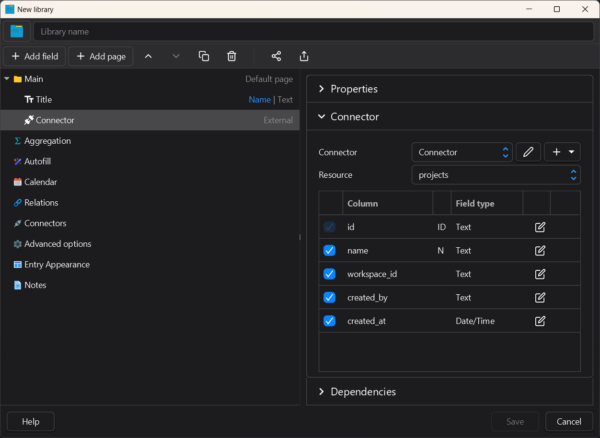
When creating an External field, the primary configuration takes place in the field properties panel. The setup includes the following steps:
1. Setting up the Connector
First, you need to configure the data source itself. In the Connector block, you can select a previously created connector from the drop-down list or create a new one by clicking the + button. When creating a new connector, you will define the basic connection parameters (such as the dialect, host, port, database name, username, and password).
2. Selecting a Resource
Every connector contains specific sets of data, which are referred to as resources.
- For SQL Database connectors, a resource is a specific table in the database.
- For REST API connectors, a resource represents predefined entities returned by configured HTTP requests.
Select the desired data set from the Resource drop-down list to specify exactly where the records for this field will be pulled from.
3. Configuring Columns and Data Types
Once you select a resource, the system will load its structure (the list of available columns or fields). In the configuration table that appears:
- Check the boxes next to the Columns you wish to use and display within Memento.
- For each selected column, define the Field type. This instructs Memento Database on how to interpret and format the received data (for example, whether to treat the value as standard Text, a Date/Time, or an ID).
- Assign Column Roles: Just as you do for regular library fields, it is important to choose which columns will play the role of the object’s Name, Description, or Status in the list of objects. You can assign these roles directly within the column configuration table.
Data Synchronization
There are two modes for synchronizing data from an external source:
- Manual (Default): By default, synchronization is manual. When you need to fetch the latest data, go to the library menu, select Data, and click Refresh External. Note that synchronization also occurs automatically whenever you change the external field parameters (for instance, when adding new columns to display).
- Live Data Mode: You can enable Live Data Mode within the external field settings. When this mode is active, objects are synchronized constantly—specifically, whenever you open the library and during cloud synchronization with Memento.
Best Practices for Live Data Mode:
- SQL Databases: This mode is highly recommended for database connectors and in scenarios where data in the external source changes frequently.
- REST API: It is not always recommended to use this mode for REST connectors. If you have many different objects linked and the REST source does not support bulk data loading, constant synchronization will generate a significant amount of requests and create a heavy load.
Learn more about detailed setup and configuration for each type:
Ready-to-Use Connectors & Sharing
If you are not sure where to start or want to see examples of properly configured resources, Memento Database provides built-in tools and a community catalog to help you out:
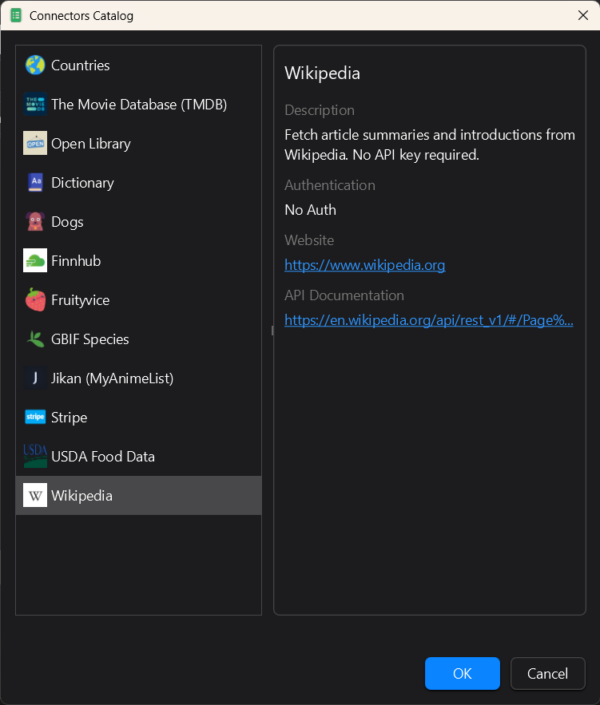
- Browse the Connector Catalog: You don’t always have to build a REST API connector from scratch. There is a catalog of ready-made connectors available directly within the app. To access it, choose to add a new connector and select Browse catalog. This is an excellent way to see exactly how different APIs and mapping rules are set up in practice.
- Export and Import Configurations: You can easily share your custom connector setups or import configurations created by others. Simply use the Export button located at the bottom of the connector configuration dialog to save your settings as a file, which can then be imported into another library or shared with the community.
Note: All the ready-made connectors featured in the built-in catalog are open-source. You can explore the repository, download specific setups, or contribute your own configurations on GitHub:
https://github.com/mementodatabase/connectors-catalog