
Memento Database allows you to use the platform as a hosting service for your data. You can publish your library data as a standalone web page, making it accessible either to the general public or only to restricted users, depending on your access settings.
These pages are managed in the Web Pages section. Specifically, this guide focuses on creating a View. Unlike Web Forms (which are used to collect data), a View is designed to display your existing records to others via a browser.
Creating a Data View
To start publishing your data:
- Open your Library.
- Go to the Main Menu > Data > Web Pages.
- Click the + button and select View.
Once the View is created, you can configure it using the tabs described below.
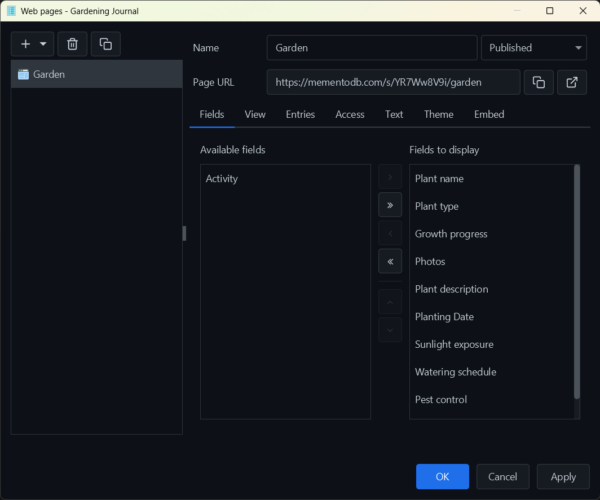
1. Fields
First, select which fields from your library should be visible in this view. You can choose to show all fields or only a specific subset relevant to the public.
2. View Settings
This tab controls the visual layout of your data.
- Page width:
- Centered: Keeps the content in a focused column in the middle of the screen (good for lists).
- Full width: Stretches the content across the entire browser window (good for tables).
- Detail mode: Defines how the full record details appear when a user clicks on an item.
- Sidebar: Opens the details in a panel sliding in from the right.
- Dialog: Opens the details in a pop-up window over the content.
- Layout: Choose how records are organized:
- List: A standard vertical list.
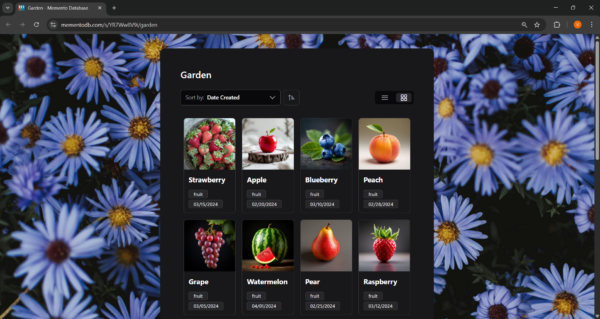
- Card: A grid of cards (great for visual items).
- Table: A spreadsheet-like view.
- Additional Options: Depending on the layout chosen, you can adjust settings like List density or the number of Card columns.
3. Entries
This tab manages which records are shown and how they are ordered.
- Sort: Select a specific field from your library to sort the records by (e.g., Name, Price, or Date).
- Filter: Configure a filter based on library fields to strictly define which records appear on the page.Example: If your library has a checkbox field named “Published Items”, you can set the filter to only display records where this field is checked. This allows you to keep drafts private while showing finished items to the world.
4. Access
This tab determines who can view your hosted page.
- Public: The page is open to everyone on the internet who has the link.
- Password: Users must enter a specific password to view the page.
- Library Users: Only users who already have access to this specific library within Memento Database can view the page.
- Selected Users: Access is restricted to specific users you authorize.
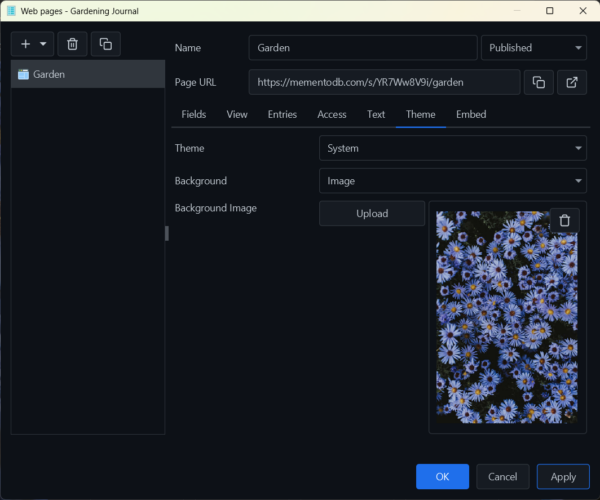
5. Theme
Customize the look and feel of your web page to match your brand or preference.
- Theme: Choose between System (follows user’s device), Light, or Dark mode.
- Background:
- Color/Gradient: Select a solid color or gradient.
- Image: Upload a custom background image to make your page standout.
6. Embed
If you have a personal blog or website, you can display your Memento View directly inside it. This tab provides an HTML Embed code (iframe). Simply copy this code and paste it into your website’s HTML to display your library there.
Publishing
When you are done with the configuration, look for the status dropdown in the top right corner of the window. Change the status to Published.
Your View is now live! You can copy the Page URL to share it with others.
Important Notes & Limitations
Please keep the following technical details in mind when using Web Views:
- Performance & Caching:
When you publish a view or make changes to its settings, the first time you (or a user) open the URL, it may load with a slight delay. This is because the system is building the page structure. Subsequent visits will be much faster. - Calculation Fields:
Calculated fields are supported, but with limitations.- If a calculation depends on the current time or values from other libraries, the result shown on the web page may not be real-time.
- The value displayed will be the value calculated the last time the record was created or modified in the app.
- Note: Lookup fields are not currently supported on Web Pages.
- Field Rendering:
The visual representation of fields on the web is currently simplified. Not all advanced visual settings or specific field formatting options available in the Memento Android/Desktop app will appear exactly the same way on the web version yet. These capabilities will be expanded in future updates.