
Use full-text search to find entries by the words they contain. Search covers searchable fields available to you.
Search Scope
- Search across Libraries: Tap the
 icon on the toolbar of the My Libraries screen. This searches unencrypted Libraries and groups results by Library.
 - Search within a Library: Open the Library and tap the icon on its toolbar. For an encrypted Library, unlock it first.

Quick Search
Start typing to see suggestions below the search box. Tap a suggestion to open the entry.
Choose which fields Quick Search uses in Library settings. Set defaults in app settings, under Search.
For the full results, enter your query and tap the keyboard’s search button. This searches all searchable fields, including fields outside your Quick Search selection. Use this when searching for several words, a phrase, or with operators.
Barcode Search
To search by barcode, use a Library containing a Barcode field:
- Tap the search icon.
- Tap the barcode icon on the right side of the search bar.
- Point the camera at the barcode and scan it.
- Tap a matching entry to open it.
You can also scan from global search when at least one Library contains a Barcode field.
Search Results
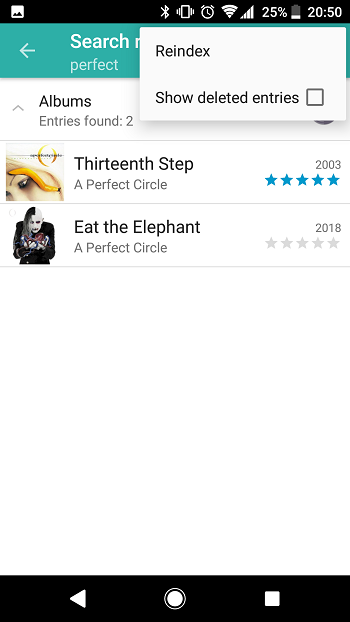
Matching entries appear in a list. Global search results are grouped by Library name. Tap an entry to view its details.
Search Syntax
Use these examples when submitting a search with the keyboard’s search button. Keep Auto-escape Query and Auto-wildcard off to get the results described below.
Find a Word
androidFinds entries containing android. Search is case-insensitive.
Find All Words
Separate words with spaces:
project activeFinds entries containing both project and active, in any order. The words can be in different searchable fields of the same entry.
Find Any of Several Words
Separate the words with uppercase OR, with a space on each side:
android OR ios
cat OR dog OR bird
The first query finds entries containing android, ios, or both. The second finds entries containing any of the three animal names.
Find a Phrase
Put the whole phrase in straight double quotation marks:
"hello world"Finds entries containing the consecutive words hello world in that order.
Find Words Beginning with a Prefix
Add * to the end of a word prefix:
test*Finds words such as test, testing, tester, and testament.
To search for several prefixes, add an asterisk to each one:
proj* case*Finds entries containing a word beginning with proj and a word beginning with case.
Exclude a Word
Enter the word you want to find, followed by a minus sign immediately before the word to exclude:
android -iosFinds entries containing android and excludes entries containing ios.
To exclude a prefix, add an asterisk:
project -complet*Finds entries containing project and excludes words such as complete, completed, and completion.
Combine Conditions
To find either of two words together with a required word:
android OR ios kotlinFinds entries containing kotlin and either android or ios.
To find either word and exclude another:
android OR ios -obsoleteFinds entries containing android or ios, excluding entries containing obsolete.
Search Settings
Open app settings and select Search.
Reindex
Rebuilds the search index from your entries. Run it if entries are missing from search results, for example after restoring a backup.
Clear Search History
Clears saved queries from the search history.
Auto-escape Query
Default: OFF
Enable this to search ordinary text as a phrase. It is useful for text containing hyphens, such as product codes.
hello worldis searched as"hello world", requiring consecutive words in that order.U-123is searched as"U-123", with the hyphen acting as a word separator. This can also match U 123.
Uppercase OR and trailing * remain available with this setting enabled.
For searches with words in any order or exclusions using a minus sign, keep this setting off.
Auto-wildcard
Default: OFF
Enable this to automatically match prefixes for the last word in your query:
testbecomestest*.proj casebecomesproj case*: finds proj together with words such as case, cases, or casework."hello world"becomes"hello world*": searches for a phrase with prefix matching for its last word.
For prefix matching on every word, enter proj* case* yourself.
With both Auto-escape Query and Auto-wildcard enabled, proj case is searched as "proj case*": consecutive words in that order, with prefix matching for the last word.
Encrypted Libraries: Enter quotation marks and asterisks yourself when searching within an encrypted Library; these two automatic settings apply to unencrypted Libraries.