
If you already have data organized in a spreadsheet (such as Excel or Google Sheets), the fastest way to get started with Memento Database is by importing that data as a CSV file.
This function allows you to simultaneously create the library structure based on your spreadsheet columns and populate it with the data from the file. You do not need to manually create fields beforehand.
Starting the Import
To begin the process:
- Ensure your spreadsheet is saved in the .csv (Comma Separated Values) format.
- Open Memento Database.
- Navigate to the main menu and select Add Library.
- Choose the Import CSV option.
- A file picker will appear. Navigate to and select your CSV file.
Configuring the Import Settings
Once you select the file, the “New Library from CSV” configuration window will appear. This window allows you to define how Memento interprets your data and constructs the new library fields.
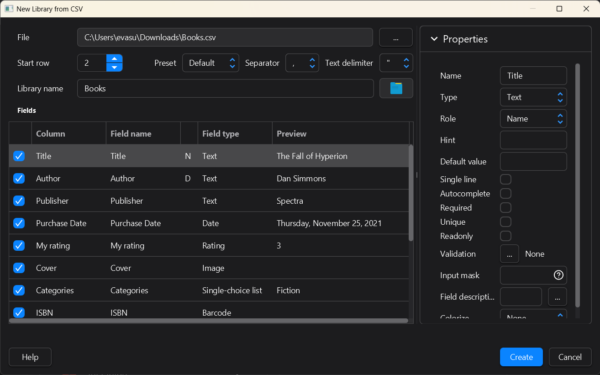
Below is an overview of the configuration options:
1. File Parsing Options (Top Section)
- Start row: Specifies the row number where the data import should begin. The default value is 1. You can adjust this number if you wish to start importing data from a different row (for example, if you want to skip specific rows at the beginning of the file).
- Separator: Memento does not automatically detect the separator used in your file. You must manually select the separator (e.g., Comma, Semicolon, Tab) that matches your CSV file format if it differs from the default setting. Check the preview table to ensure your columns are split correctly.
2. Defining Fields and Types (Central Table)
The main table lists all columns found in your CSV file (using the header row to name them). Memento proposes a corresponding library field for each column.
Crucial Step: Set Field Types
By default, Memento will set nearly all imported fields to the Text type. To maximize the functionality of your library (enabling calculations, sorting by date, or displaying images), you must manually change these types to match your data.
Click on a field row, and in the Properties panel on the right, change the Type.
Examples of common field types:
- Text: For general alphanumeric data (e.g., Book Title, Publisher).
- Integer/Real Number: For numerical data that might be used in calculations.
- Date/Time: For dates (e.g., Purchase Date).
- Image: For displaying pictures (e.g., Cover).
- Single-choice list: Use this if a column contains repeating categories (e.g., Genre/Categories). Memento will automatically generate the dropdown list options from the data.
3. Setting Field Roles (N, D, S)
Because the primary view in Memento is a list of entries, you need to define which fields should appear in that list view to help identify the entry. This is done using Roles.
- N (Name): The primary identifier of the entry (e.g., the Book Title). It usually appears in bold text in the list view.
- D (Description): Secondary information that appears below the Name in the list view (e.g., Author name).
To set a role, select the field row. In the Properties panel on the right, find the Role dropdown and select “Name” or “Description”. You will see an ‘N’ or ‘D’ appear next to the field name in the main table.
For more detailed information on how roles affect entry display, please refer to the Roles documentation.
4. Other Properties
The right-hand Properties panel offers additional settings like Default value, Required (making the field mandatory), and Unique (preventing duplicate values). While you can configure these during import, you can also edit them later after the library has been created.
Special Considerations for Field Types
Date Fields
If you set a field type to “Date”, ensure Memento understands the format used in your CSV file (e.g., DD/MM/YYYY vs MM/DD/YYYY).
When a Date field is selected, look for the Column Format option in the Properties panel to define the exact format your CSV uses.
Images and File Fields
You can import images and files directly if your CSV column contains the full, absolute path to the file on your device’s storage.
Example path: C:\Users\YourName\Documents\Images\book_cover.jpg
When importing, Memento will copy these referenced files into its internal application folder.
Finalizing the Import
Once you have defined your field types and roles, give your new library a name in the Library name input box at the top.
Click the blue Create button. Memento will build the library structure and import all rows from your CSV file as new entries.